
Design & Digital Skills
Graphic design with Canva and Photoshop basics
Design principles, then posters, social posts and cards made in Canva, with the basics of editing photographs in Photoshop.
Suits: Students and small-business owners
Duration, fees and batch timings are quoted by the head office or your centre.
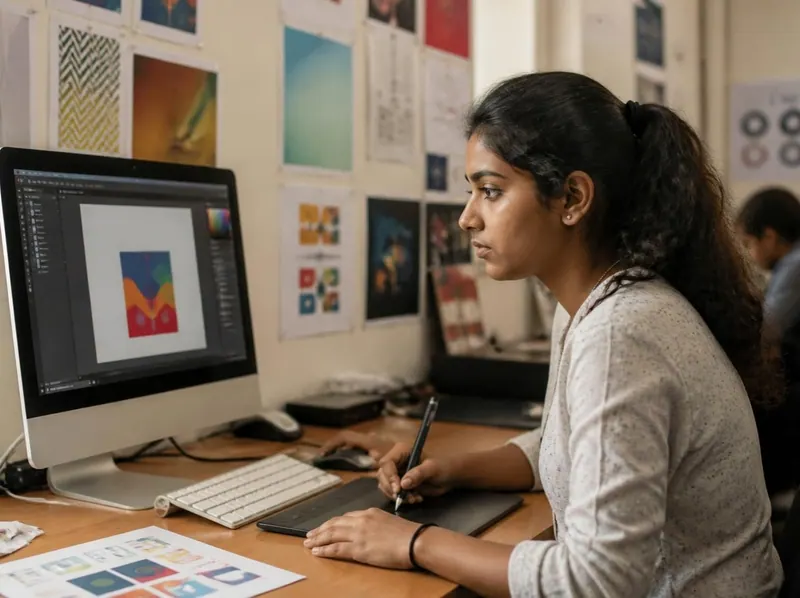
The study book of this course
- Graphic Design with Canva and Photoshop Basics
- Lessons
- 8
- Practice questions
- 40
- Free ebooks
- 0
About the course
What the graphic design course is about
Good design is mostly a handful of rules applied carefully: alignment, contrast, hierarchy, colour and type. The course teaches those rules first, then uses them in Canva for posters, social posts and cards.
Photoshop basics follow: layers, selections, cropping, adjusting a photograph and exporting it. The course also covers pixels, resolution and file formats, print versus screen, and using other people’s images responsibly.
What you will practise
Drawn from the lessons of the study books below.
- 01
Apply alignment, contrast, hierarchy, colour and font choices
- 02
Tell raster from vector images and pick the right file format
- 03
Design a poster, a social post and a visiting card in Canva
- 04
Use layers, selections, crop and adjustments in Photoshop
- 05
Export for print and for screen at the right size
- 06
Use images, fonts and music with respect for copyright
What you will learn
8 lessons, 16 exercises
Every lesson of the study book that comes with this course in the student portal, with the key points of each lesson and exercises to try. Your centre gives you the syllabus, the duration and the fee.
Study book
Graphic Design with Canva and Photoshop Basics
Learn the principles of good design, how images and colours work, and how to make posters, social posts and visiting cards in online design tools and photo editors, for screen or print, using images responsibly.
1Why Design Matters and How We See3 min read · 4 key points · 2 exercises
Key points
- Design exists to communicate a message quickly to a specific audience.
- Ask who, what, where and which information is essential before starting.
- White space helps the important parts stand out.
- Tools change, but design ideas stay the same.
Try this
- Pick any poster on your street or on your phone and write down what you noticed first, second and third. Was that the order the designer wanted?
- Choose something you could design (for example a notice for your class). Answer the four questions in writing.
2Alignment, Contrast, Hierarchy and Repetition4 min read · 4 key points · 2 exercises
Key points
- Alignment makes a design look tidy and organised.
- Contrast (in size, colour or weight) makes important things stand out.
- Hierarchy decides what the eye reads first, second and last.
- Repetition builds a consistent look; proximity groups related items.
Try this
- Take one cluttered notice from a notice board and redraw it on paper with a clear first, second and third level of importance.
- Make two versions of a name card layout on paper: one badly aligned, one well aligned. Ask a friend which they trust more.
3Colour and Fonts4 min read · 4 key points · 2 exercises
Key points
- Screens use RGB light, printers use CMYK ink, so colours can shift in print.
- A palette of a main, a secondary and an accent colour keeps a design controlled.
- Saved brand colours and hex codes keep colours identical across designs.
- Use at most two fonts and check that they support your script.
Try this
- Choose a favourite shop or brand and write down its three main colours and the fonts you think it uses. Where does it use the accent colour?
- Build a three-colour palette for a school sports day poster and write one line on why you chose each colour.
4Images: Raster, Vector, Resolution and File Formats4 min read · 4 key points · 2 exercises
Key points
- Raster images use pixels and blur when enlarged; vector images scale cleanly.
- Print usually needs about 300 ppi, screens need only enough pixels for the display.
- JPG suits photos, PNG suits logos and transparency, PDF suits print-ready files.
- Keep the original and save edits as new files.
Try this
- Take one photo on your phone and note its pixel width and height from the file details. Work out how many inches wide it prints at 300 ppi.
- Make a table of five image files on a computer and write which format each is and why that format suits it.
5Working in Canva: Templates, Elements and Text4 min read · 4 key points · 2 exercises
Key points
- Choose the right size first, then adapt a template instead of copying it unchanged.
- Use frames, alignment and distribute tools for neat layouts.
- Keep text readable with plain or darkened backgrounds and few fonts.
- Save brand colours and fonts for consistent business designs.
Try this
- Open a design tool and make a 1080 by 1080 pixel social post for a school book fair with a headline, date and place. Use only two fonts.
- Use the align and distribute tools to place four icons in an even row, then check the spacing.
6Photoshop Basics: Layers, Selections, Crop and Adjustments4 min read · 4 key points · 2 exercises
Key points
- Layers keep parts of a design separate so each can be changed safely.
- Crop to improve composition; do not enlarge small images.
- Selections and masks limit edits to chosen areas without destroying the image.
- Keep the layered original and export a JPG or PNG copy.
Try this
- Take a photo, crop it to a square, raise the contrast a little and export it as JPG. Compare the file sizes of the original and the exported copy.
- Make a three-layer file: a photo, a text layer and a coloured shape. Hide and show each layer and write what changed.
7Posters, Social Posts and Visiting Cards4 min read · 4 key points · 2 exercises
Key points
- Every format has its own viewing distance and text size needs.
- Posters need a big headline and key details; social posts need short, bold text.
- Visiting cards need clean layout, safe margins and correct contact details.
- Test your design on a phone and with a second person.
Try this
- Design a poster for a local cleanliness drive with a headline, an image, date, place and contact line. Ask someone to find the date in three seconds.
- Design a visiting card for an imaginary tailor and check margins and phone digits twice.
8Print versus Screen, Copyright and Using Images Responsibly4 min read · 4 key points · 2 exercises
Key points
- Screen designs use RGB and pixel sizes; print needs real size, about 300 ppi, bleed and margins.
- An A4 page at 300 ppi needs roughly 2480 by 3508 pixels.
- Being online does not make an image free to use; check the licence and give credit if required.
- Get permission for photographs of people and never mislead or embarrass anyone.
Try this
- Make a table of five images you want to use and note where each came from and what its licence allows.
- Calculate the pixel size needed for a poster 12 inches wide and 18 inches tall at 300 ppi, then check whether any of your photos is large enough.
Glossary: 25 key terms of Graphic Design with Canva and Photoshop Basics
- Graphic design
- Arranging text, images, shapes and colour to communicate a message clearly.
- White space
- Empty area around elements that rests the eye and makes important parts stand out.
- Alignment
- Lining up elements along a common edge or centre line.
- Contrast
- A clear difference in size, colour or weight that makes something stand out.
- Visual hierarchy
- The order in which the eye reads the parts of a design.
- Repetition
- Using the same colours, fonts or shapes again to create a consistent look.
- Proximity
- Keeping related items close together and unrelated ones apart.
- RGB
- Colour made by mixing red, green and blue light, used for screens.
- CMYK
- Colour made by mixing cyan, magenta, yellow and black ink, used in printing.
- Palette
- The small set of colours chosen for a design.
- Hex code
- A short code of letters and digits that names an exact screen colour.
- Serif
- A typeface with small strokes at the ends of letters.
- Sans-serif
- A plain typeface without small strokes at letter ends.
- Raster image
- An image made of pixels, such as a photograph.
- Vector image
- An image made of mathematical shapes that can be enlarged without blur.
- Pixel
- The smallest single-colour square of a raster image.
- Resolution
- The amount of detail in an image, such as its pixel size or pixels per inch.
- PNG
- An image format good for graphics and transparent backgrounds.
- JPG
- A compressed image format suited to photographs.
- Layer
- A transparent sheet in an editor that holds part of an image and can be edited on its own.
- Selection
- An outlined area of an image so that edits affect only that area.
- Mask
- A way to hide parts of a layer without erasing them.
- Bleed
- Extra image or colour beyond the trim line so no white edge shows after cutting.
- Copyright
- The legal right of a creator to control how their work is used.
- Licence
- The terms that say how a work may be used.
Practice and study material
Study books and timed practice tests in the student portal
Students sign in to read the study books lesson by lesson, print them, mark lessons as done and test themselves with timed practice tests, every answer explained.
- 1study book
- 8lessons
- 40practice questions
- 25glossary terms
How the practice tests work
- Fresh questions each time
Up to 20 questions are picked at random from the subject’s question bank.
- One minute per question
A timer counts down. When it reaches zero, your answers are sent automatically.
- Move around freely
Skip a question, flag it, and come back to change your answer before you submit.
- Learn from every answer
At the end you see the right answer and an explanation for each question.
- Read, print and keep track
Each study book has its lessons, key points, exercises and a glossary. Print a lesson, or mark it as done.
Your centre gives you your login when you enrol.
Try 3 practice questions
Real questions from this course’s question banks. Pick an answer to see the explanation.
Why should you keep your original photo untouched?
Show the answer
Answer: D. So you can return to it and save edits as new files
Saving edited copies under new names protects the original.
Why keep text inside a safe margin on a visiting card?
Show the answer
Answer: C. So it is not cut off when trimmed
Trimming can shift slightly, so keep text away from edges.
What is the main purpose of graphic design?
Show the answer
Answer: C. To communicate a message clearly to an audience
Design exists to carry a message to a viewer quickly and clearly.
Careers
Careers this course leads towards
The kind of work these skills are used for. Each guide explains what the job involves, the skills it asks for and how to get started.
Graphic designer and DTP operator
Laying out visiting cards, posters, pamphlets and banners, and preparing files that print correctly.
How admission works
From your first question to your certificate.
The usual steps, at the head office in Delhi or at an authorised member centre.
- Who can join
- Students above 12 years of age.
- Where
- The Delhi head office and authorised member centres.
- Fees and timings
- On WhatsApp at +91 97116 99511, or by phone on 011 2721 1512.
- 1
Ask about the course
Call or WhatsApp the head office, or visit your nearest member centre. Ask for the duration, the fee and the batch timings in writing.
- 2
Fill the admission form
Admission forms are supplied by the head office to every centre.
- 3
Learn in class
Attend your batch at the centre, with the course material and study notes, and sign in to the student portal for the study books and practice tests.
- 4
Take the exam
The institute prefers written exams, taken in front of a teacher.
- 5
Receive your certificate
Students who pass get a Gurukul Technicals Institute certificate and marksheet. Employers can verify it with the head office.
Who can join the graphic design course?
Students above 12 years of age can take admission, at the Delhi head office or at an authorised member centre. The course suits students and small-business owners. Tell the head office or your centre what you already know, and they will suggest where to start.
How long is the course and what is the fee?
Duration, fees and batch timings depend on the course and the centre. Ask the head office or your nearest member centre, and get the details in writing before you pay.
Where are the classes?
At the head office in Delhi (A-10, Chief Commissioner Colony, opposite Rana Pratap Bagh) and at authorised member centres. Call or WhatsApp the head office to find the nearest centre.
What do I need to use the study books and practice tests?
A phone or a computer with an internet connection, and the login your centre gives you at enrolment. The student portal opens in an ordinary web browser, so there is nothing to install. Student login.
How do the practice tests work?
Sign in to the student portal and choose a subject. Each test picks up to 20 questions at random from that subject’s question bank and gives you one minute per question, with a timer that sends your answers automatically when it reaches zero. You can skip a question, flag it and come back before you submit, and at the end you see the right answer and an explanation for every question. This course has 40 practice questions across 1 subject, and you can take the tests as often as you like.
Is there an exam and a certificate?
Yes. The institute prefers written exams, taken in front of a teacher. Students who pass receive a Gurukul Technicals Institute certificate and marksheet.
How is a Gurukul Technicals Institute certificate verified?
On the verify certificate page, anyone can enter a certificate number and check it against the institute’s online register, which covers certificates issued through the portal. For older certificates, or if there is any doubt, send a copy to the head office by email or WhatsApp; the reply comes within 2 working days.
Ready to start the graphic design course?
Ask the head office for the duration, the fee, the batch timings and your nearest member centre.