Head office, Rana Pratap Bagh, Delhi011 2721 1512+91 97116 99511

Hardware & Networking

Hardware and networking

How a computer is put together, installing the system, and connecting computers in a network.

Suits: Learners who want hands-on technical work

Duration, fees and batch timings are quoted by the head office or your centre.
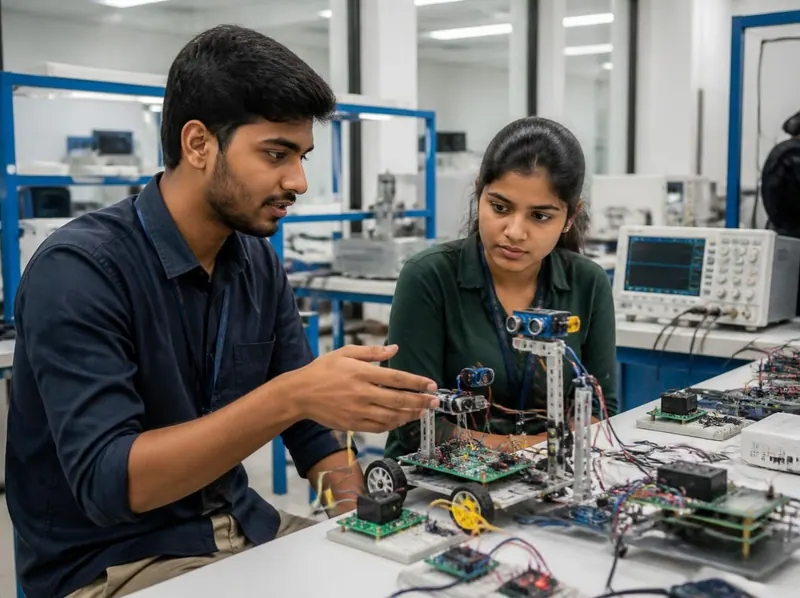
Two engineering students discussing a robotics prototype with sensors in an electronics lab

2 study books in this course

  • Computer Hardware and Maintenance
  • Computer Networking
Lessons
14
Practice questions
70
Free ebooks
10

About the course

What the hardware and networking course is about

A hands-on course in how a computer is put together and how computers connect. The hardware half goes inside the PC: the motherboard and CPU, RAM, storage, the SMPS and ports, assembling a PC safely, BIOS and UEFI, installing Windows and drivers, and finding faults.

The networking half covers network types and topologies, devices from the network card to the router, cables and Wi-Fi, IPv4 addressing, DNS and DHCP, the OSI and TCP/IP models, and troubleshooting with ping and ipconfig.

What you will practise

Drawn from the lessons of the study books below.

  1. 01

    Identify every part inside a PC and what it does

  2. 02

    Assemble a PC safely and set the boot order in BIOS/UEFI

  3. 03

    Install Windows and drivers, and diagnose common hardware faults

  4. 04

    Choose network devices, cables and connectors for a small office

  5. 05

    Work out IPv4 addresses and subnet masks, and understand DNS and DHCP

  6. 06

    Troubleshoot a connection with ping and ipconfig

What you will learn

2 subjects, 14 lessons

Every lesson of the study books that come with this course in the student portal, with the key points of each lesson and exercises to try. Your centre gives you the syllabus, the duration and the fee.

Subject 1 of 2

Computer Hardware and Maintenance

Know every part inside a PC, assemble one safely, set up BIOS/UEFI, install Windows and drivers, and diagnose and prevent common hardware faults.

  • 7 lessons
  • About 21 min of reading
  • 35 practice questions
  • 25 key terms
  1. 1Inside the PC: Motherboard and CPU3 min read · 5 key points · 3 exercises

    Key points

    • The motherboard connects every component and carries power and data.
    • Form factors such as ATX, Micro-ATX and Mini-ITX must suit the cabinet.
    • CPU specifications include cores, threads, clock speed (GHz) and cache.
    • A CPU must match the socket and appear on the motherboard support list.
    • Thermal paste and a cooler stop the CPU from overheating.

    Try this

    1. With your instructor's permission, open the side panel of a switched-off and unplugged desktop and draw a labelled sketch showing the CPU socket and cooler, RAM slots, PCIe slots, M.2 slot (older boards may have none), SATA ports, 24-pin power connector, CMOS battery and front-panel header.
    2. Open the Performance tab of Task Manager on a Windows computer, select CPU, and note the processor's name, base speed, number of cores, logical processors and cache sizes; repeat on a second computer and compare the two.
    3. Choose two motherboards from a shop brochure or a manufacturer's specification sheet and make a comparison table of their form factor, CPU socket, chipset, number of RAM slots, M.2 slots and SATA ports.
  2. 2Memory: RAM Types3 min read · 5 key points · 3 exercises

    Key points

    • RAM is fast, volatile working memory; its contents vanish without power.
    • DDR3, DDR4 and DDR5 are not interchangeable because the notch position differs.
    • Desktops use DIMMs, laptops use SO-DIMMs, and some laptops have soldered RAM.
    • Matching modules in the correct slots run in faster dual-channel mode.
    • A loose RAM module is a common cause of no display.

    Try this

    1. Check how much RAM a Windows computer has under Settings > System > About, then open Task Manager > Performance > Memory and note the speed, the number of slots used and the form factor shown there.
    2. With the PC unplugged and an antistatic wrist strap on, remove one RAM module, look at the position of its notch and read its label for the generation, capacity and speed, then reinstall it and confirm the full amount of RAM is detected.
    3. Make a chart comparing DDR3, DDR4 and DDR5 with their standard voltages, and draw a desktop DIMM beside a laptop SO-DIMM showing the difference in length and notch position.
  3. 3Storage: HDD, SSD and NVMe3 min read · 5 key points · 3 exercises

    Key points

    • HDDs use spinning platters; SSDs use flash memory with no moving parts.
    • SATA SSDs are limited by the SATA interface; NVMe SSDs use faster PCIe lanes.
    • M.2 is a form factor, and an M.2 drive can be SATA or NVMe.
    • Defragment HDDs but never SSDs; Windows uses TRIM for SSDs.
    • A clicking hard disk means back up the data immediately.

    Try this

    1. Open the Defragment and Optimize Drives tool on a Windows computer and note the media type of each drive, then write down whether Windows will defragment it (hard disk drive) or send it TRIM (solid state drive).
    2. Work out how many GB Windows will show for drives sold as 256 GB, 512 GB, 1 TB and 2 TB by dividing the decimal number of bytes by 1,073,741,824 (Windows shows the 2 TB result, about 1,863 GB, as 1.81 TB after dividing by 1,024 once more), then compare one answer with a real drive in File Explorer, where the C: drive may be a little smaller because Windows keeps small hidden system partitions.
    3. Compare a 3.5-inch HDD, a 2.5-inch SATA SSD and an M.2 SSD at the centre, or pictures of them, writing for each its connection, typical use and one advantage and one disadvantage; measure the M.2 SSD with a ruler, if you have the real drive, to work out its size code, such as 2280 for 22 mm wide and 80 mm long.
  4. 4The SMPS and Computer Ports3 min read · 5 key points · 3 exercises

    Key points

    • The SMPS converts 230 V AC mains into low DC voltages: +12 V, +5 V and +3.3 V.
    • Main connectors are the 24-pin ATX, 8-pin CPU, PCIe and SATA power.
    • Choose adequate wattage from a reliable brand and protect it with a UPS.
    • Never open an SMPS: its capacitors can stay charged.
    • USB-C is a connector shape; speed depends on the USB version.

    Try this

    1. On an unplugged SMPS that is kept for practice, identify the 24-pin ATX, 8-pin CPU, PCIe, SATA power and Molex connectors without opening the unit (a basic office SMPS may have no PCIe connector), and make a chart of the ATX wire colours with the voltage or signal each one carries.
    2. Read the label on an SMPS and write down its wattage, its 80 PLUS rating if it has one, and the maximum current of its +12 V output.
    3. Go round the front and back of a desktop PC and the sides of a laptop and list every port you find, writing its name, what it is used for and, for USB ports, whether it is Type-A or Type-C and whether it looks like USB 2.0 or USB 3.x.
  5. 5Assembling a PC Safely3 min read · 5 key points · 3 exercises

    Key points

    • Unplug the PC and drain leftover charge before working inside.
    • ESD can damage parts invisibly: use a wrist strap, an antistatic mat and antistatic bags.
    • Handle components by their edges and never force a CPU or RAM module.
    • A pea-sized dot of thermal paste is enough; connect the fan to CPU_FAN.
    • If a new build will not start, check the front-panel and CPU power cables first.

    Try this

    1. Practise the full safety routine under supervision: shut down and unplug the PC, hold the power button for a few seconds, take off your watch and rings, clip on an antistatic wrist strap to bare metal on the case, and pick up a RAM module and an expansion card correctly by their edges.
    2. Under supervision and after the full safety routine (unplugged, power button held, wrist strap on), take apart a training PC step by step, putting the screws for each part into a labelled tray and photographing every stage, then reassemble it in reverse order, cleaning off the old thermal paste and applying a fresh pea-sized dot if you removed the CPU cooler, and confirm it reaches the BIOS/UEFI screen.
    3. Using the motherboard manual, copy the front-panel header diagram into your notebook, then, with the PC unplugged, connect the power switch, reset switch and LED wires to the correct pins on a training board, plug it back in and check that the power button works.
  6. 6BIOS/UEFI, Boot Order, Windows and Drivers3 min read · 5 key points · 3 exercises

    Key points

    • Firmware runs POST, then starts the OS from the first bootable device.
    • UEFI replaces legacy BIOS and supports GPT drives and Secure Boot.
    • Setup and boot-menu keys vary by maker; Delete, F2, F12 and Esc are common.
    • Windows 11 requires Secure Boot capable UEFI firmware and TPM 2.0.
    • Get drivers from official sites; Device Manager shows problems and can roll back a driver.

    Try this

    1. Restart a PC, find the setup key and the one-time boot menu key from the start-up screen or the manual, enter setup and note the detected CPU, RAM and drives, the boot order and whether Secure Boot and the TPM are enabled, then exit without saving any changes.
    2. After copying any files off a USB drive of at least 8 GB, use the Media Creation Tool on a working PC to make a Windows 11 bootable USB drive, then check that a test PC lists it in its one-time boot menu without starting an installation.
    3. Open Device Manager, expand each category and note any device with a yellow warning icon; for one device, open Properties > Driver and write down the driver provider, date and version, and whether Roll Back Driver is available.
  7. 7Troubleshooting and Preventive Maintenance3 min read · 5 key points · 3 exercises

    Key points

    • Troubleshoot methodically: ask, reproduce, check simple things, change one thing at a time.
    • Fans without a display often means RAM seating or the wrong monitor port.
    • A clock that resets at every start points to a weak CMOS battery.
    • Beep codes differ by manufacturer, so check the motherboard manual.
    • Regular cleaning, good airflow, a UPS and backups prevent many faults.

    Try this

    1. Make a job card with fields for the customer, the symptom, questions asked, tests done, parts swapped, the fix and the date, and fill it in while solving a practice fault set by your instructor, such as a loosened RAM module or an unplugged front-panel cable.
    2. Open Task Manager with Ctrl + Shift + Esc, sort the processes by CPU and then by memory, disable one unnecessary program on the Startup apps page (the Startup tab on Windows 10), and schedule Windows Memory Diagnostic to run at the next restart, noting its result.
    3. Carry out preventive maintenance on a training PC: with it shut down and unplugged, blow out the dust while holding the fans still, then power it on with the side panel off and check that every fan spins, wipe the keyboard and the screen the correct way, and record the date and the work done in a maintenance log.
Glossary: 25 key terms of Computer Hardware and Maintenance
BIOS and UEFI
Firmware on a motherboard chip that tests the hardware and starts the operating system; UEFI is the modern replacement for the older BIOS and adds GPT drive support and Secure Boot.
Boot order
The sequence of devices the firmware tries, one after another, when looking for an operating system to start.
Chipset
The chips on the motherboard that manage communication between the CPU and devices such as USB ports and SATA drives.
CMOS battery
A coin cell on the motherboard, commonly a CR2032, that keeps the clock and firmware settings when the PC is unplugged.
CPU
The Central Processing Unit, or processor, the chip that carries out the instructions of programs.
DDR
Double Data Rate SDRAM, the type of RAM in current PCs and laptops, made in generations such as DDR4 and DDR5 that do not fit each other's slots.
DIMM
Dual Inline Memory Module, the long memory module used in desktop computers; most upgradeable laptops and mini PCs use the shorter SO-DIMM instead.
Driver
Software that lets the operating system communicate with a particular piece of hardware, such as a graphics card, Wi-Fi adapter or printer.
ESD
Electrostatic discharge, a sudden flow of static electricity that can damage chips even when it is too small for you to feel.
Form factor
The standard size and layout of a part, such as ATX, Micro-ATX or Mini-ITX for motherboards and M.2 2280 for SSDs.
HDD
A hard disk drive, which stores data magnetically on spinning platters read by a head on a moving arm.
M.2
A small card-shaped form factor and slot used mainly for SSDs; an M.2 SSD is either a SATA drive or an NVMe drive, and the slot must support that type.
Motherboard
The main circuit board of a computer, which connects every component and carries power and data between them.
NVMe
Non-Volatile Memory Express, a way for SSDs to communicate over fast PCIe lanes, making them several times faster than SATA SSDs.
PCIe
PCI Express, the high-speed connection used by graphics cards, NVMe SSDs and other expansion cards, in slots of different widths such as x1 and x16.
POST
The Power-On Self-Test, the check the firmware runs at switch-on to confirm that the CPU, RAM and graphics are working before the operating system starts.
RAM
Random Access Memory, the fast working memory that holds open programs and files and loses its contents when the power goes off.
SATA
Serial ATA, the interface and cables used to connect hard disks, SATA SSDs and optical drives; SATA III is limited to 6 Gb/s.
Secure Boot
A UEFI feature that lets only boot software signed with a trusted key start, which blocks malicious boot programs.
SMPS
The Switched-Mode Power Supply, which converts AC mains electricity into the low DC voltages, such as +12 V, +5 V and +3.3 V, that computer parts use.
SSD
A solid state drive, which stores data in flash memory chips and has no moving parts, so it is faster and tougher than a hard disk.
Thermal paste
A paste spread thinly between the CPU and its cooler to fill tiny air gaps so that heat flows into the heatsink.
TPM
The Trusted Platform Module, a security chip or firmware feature that stores encryption keys safely; Windows 11 requires TPM version 2.0.
TRIM
A command the operating system, such as Windows, sends to an SSD to say which blocks of data are no longer in use, helping the drive manage its free space and stay fast.
UPS
An Uninterruptible Power Supply, a battery-backed unit that keeps a computer running for a short time during a power cut so work can be saved and the PC shut down safely.

Subject 2 of 2

Computer Networking

Learn how computers connect and talk to each other, from network types, topologies, devices, cables and Wi-Fi to IPv4 addressing, DNS, DHCP, the OSI and TCP/IP models, common ports and basic troubleshooting.

  • 7 lessons
  • About 28 min of reading
  • 35 practice questions
  • 25 key terms
  1. 1Networks, network types and topologies4 min read · 5 key points · 3 exercises

    Key points

    • A network connects devices so they can share data, printers and an internet connection.
    • In a client-server network, servers provide services to clients; in a peer-to-peer network all computers are equal.
    • By size, networks are PAN, LAN (building or campus), MAN (city) and WAN (countries); the internet is the largest WAN.
    • Star is the usual LAN topology: a broken cable affects one device, but a failed central device stops them all.
    • A full mesh of n devices needs n(n-1)/2 links.

    Try this

    1. Walk round your home, school lab or computer centre and list every networked device you can find, such as computers, a printer, the router, phones and a smart TV, then decide whether the setup is client-server or peer-to-peer and write one reason.
    2. Write one real example each of a PAN, a LAN, a MAN and a WAN from your own life, such as earbuds paired to a phone or a bank linking its branches, and note roughly how far each one stretches and who is likely to own it.
    3. On paper, draw bus, star, ring, full mesh and tree layouts for six computers, mark what happens in each when one cable breaks, and use n(n-1)/2 to work out how many links a full mesh of 4, 6 and 8 devices needs.
  2. 2Network devices: NIC, hub, switch, router and access point4 min read · 5 key points · 3 exercises

    Key points

    • Every networked device has a NIC with a 48-bit MAC address, written as 12 hexadecimal digits.
    • A hub repeats data out of every port; a switch learns MAC addresses and sends data only to the right port.
    • A router connects different networks and forwards packets using IP addresses.
    • An access point lets wireless devices join a wired network.
    • A home Wi-Fi router combines a router, a switch, an access point, a DHCP server and a firewall.

    Try this

    1. On a Windows computer, open Command Prompt, run ipconfig /all and write down the Physical Address of each Ethernet and Wi-Fi adapter, count its 12 hexadecimal digits, and check in Wi-Fi settings whether Random hardware addresses is turned on, because then the Wi-Fi address will not identify the manufacturer.
    2. Look at a home or office Wi-Fi router and its label: find the internet (WAN) port, the LAN ports and the power socket, note whether a separate modem or ONT is connected to it, and write which parts show it working as a router, a switch and an access point.
    3. Draw a network diagram for a small office with an ONT, a router, an eight-port switch, a wireless access point, four wired computers, a network printer and phones on Wi-Fi, and label the switch and the router with the OSI layer each works at and whether it forwards data by MAC address or by IP address.
  3. 3Cables, connectors and Wi-Fi4 min read · 5 key points · 3 exercises

    Key points

    • Twisted-pair LAN cable has four twisted pairs to reduce interference and uses RJ45 connectors.
    • A single twisted-pair Ethernet run should be no longer than 100 metres.
    • Optical fibre carries light, covers long distances at high speed and is immune to electrical interference.
    • 2.4 GHz Wi-Fi reaches further; 5 GHz is faster with a shorter range.
    • Secure Wi-Fi with WPA3 or WPA2; WEP is outdated and unsafe.

    Try this

    1. Examine a LAN cable: read the category printed on its jacket, such as Cat5e or Cat6, look through the clear RJ45 plug to identify the eight wires in four colour pairs, and compare the plug's width with an RJ11 telephone plug.
    2. Estimate the cable length from a lab switch to the farthest computer and check it is within 100 metres, then choose a cable for each of these and give a reason: a 10 Gbps run of 80 metres on one floor, a link between two buildings on the same campus, and a link between two cities.
    3. In Windows Settings, open the properties of the Wi-Fi network you are connected to and note its SSID, protocol (such as Wi-Fi 5 or Wi-Fi 6), security type and network band, then write whether the security is WPA3 or WPA2 and whether a 5 GHz band would be better in that room.
  4. 4IPv4 addresses, private ranges and subnet masks4 min read · 5 key points · 3 exercises

    Key points

    • An IPv4 address is 32 bits, written as four octets from 0 to 255; IPv6 uses 128 bits.
    • The subnet mask divides an address into a network part and a host part; /24 means 255.255.255.0.
    • A /24 network has 254 usable addresses; the first is the network address and the last is the broadcast address.
    • The private ranges are 10.0.0.0/8, 172.16.0.0/12 and 192.168.0.0/16, and NAT lets them share a public address.
    • Traffic for another network goes to the default gateway, which is the router.

    Try this

    1. Write valid or invalid with a reason for each address, and say whether each valid one is private or public: 192.168.1.25, 10.0.0.300, 172.16.5.1, 256.1.1.1, 8.8.8.8 and 192.168.1.
    2. For 192.168.10.77/24, work out the network address, the broadcast address, the first and last usable addresses and the number of usable hosts, then decide whether 192.168.10.200 and 192.168.11.5 are on the same network.
    3. Run ipconfig on your computer and write down its IPv4 address, subnet mask and default gateway, write the mask in prefix form and in binary, say whether the address is private, and check that the gateway is on the same network as the computer.
  5. 5DNS and DHCP4 min read · 5 key points · 3 exercises

    Key points

    • DNS translates domain names such as www.example.com into IP addresses, and answers are cached.
    • A lookup goes from the resolver to a root server, then the top-level domain servers, then the domain's authoritative server.
    • DHCP gives a device its IP address, subnet mask, default gateway and DNS servers automatically.
    • DHCP works in four steps, Discover, Offer, Request and Acknowledge (DORA), and addresses are leased.
    • Printers and servers need a fixed address: a static address or a DHCP reservation.

    Try this

    1. In Command Prompt, run nslookup followed by the name of a website you use often, note the IPv4 address, any IPv6 addresses and the DNS server that answered, run it again with 1.1.1.1 added after the name to ask that server instead, and then run ipconfig /displaydns to see the names your computer has cached (nslookup asks the DNS server directly, so its own lookups do not appear there, but sites you opened in the browser do).
    2. Run ipconfig /all and find the DHCP Enabled line, the DHCP Server address, the DNS Servers and the Lease Obtained and Lease Expires times, then write the four DORA steps that gave your computer its address.
    3. With the owner's permission, sign in to a home Wi-Fi router's settings page, find the DHCP address range, the lease time and the list of connected devices, and plan a fixed address for a printer either outside that range or as a DHCP reservation tied to its MAC address.
  6. 6The OSI and TCP/IP models and common ports4 min read · 4 key points · 3 exercises

    Key points

    • The OSI model has seven layers: Physical, Data link, Network, Transport, Session, Presentation and Application.
    • The TCP/IP model has four layers: Network access, Internet, Transport and Application.
    • TCP is reliable and connection-oriented; UDP is faster and connectionless.
    • Well-known ports: 80 HTTP, 443 HTTPS, 22 SSH, 25 SMTP and 53 DNS.

    Try this

    1. Write the seven OSI layers from 1 to 7 from memory using the memory aid, add each layer's job and one example protocol or device, mark the data unit at layers 1 to 4, and draw a second column showing the TCP/IP layer each one belongs to.
    2. Sort these into TCP or UDP with a reason for each: loading a web page, sending an email, downloading a file, a DNS lookup, a live video call and an online game; then write the port numbers of HTTP, HTTPS, SSH, SMTP, DNS and FTP from memory and check them against the lesson.
    3. With a few web pages open in the browser, run netstat -n in Command Prompt to list your computer's TCP connections, find remote addresses ending in :443 or :80, and write which protocol each port belongs to and why most connections use 443.
  7. 7Troubleshooting with ping and ipconfig4 min read · 5 key points · 3 exercises

    Key points

    • ipconfig shows a Windows computer's IP address, subnet mask and default gateway; ipconfig /all adds the MAC address and the DHCP and DNS servers.
    • ping checks whether an address replies and shows the round-trip time in milliseconds.
    • An address starting with 169.254 means the computer could not get one from DHCP.
    • Troubleshoot outwards: loopback, then the default gateway, then an internet address, then a name.
    • If an IP address replies but a name cannot be found, the problem is DNS.

    Try this

    1. Follow the lesson's step-by-step method on your own computer: check the connection, run ipconfig, ping 127.0.0.1, ping your default gateway, ping 8.8.8.8 and ping a website by its name, writing down the reply time or the error message at each step.
    2. On your own computer or with your instructor's permission, unplug the LAN cable or turn off Wi-Fi, run ipconfig and ping the gateway and note the messages, then reconnect, run ipconfig /release followed by ipconfig /renew, and check whether the address changed.
    3. Run tracert 8.8.8.8 and count the routers on the path, noting any hop that is slow or shows Request timed out; then run ping -t to your default gateway for a minute, stop it with Ctrl+C and read the summary of packets sent, received and lost.
Glossary: 25 key terms of Computer Networking
Access point
A device that lets Wi-Fi devices join a wired network, usually connected by cable to a switch.
Broadcast address
The last address of an IPv4 network, with all host bits set to 1, such as 192.168.1.255, which delivers data to every device on that network.
Default gateway
The router address a device sends traffic to when the destination is on a different network, such as the internet.
DHCP
Dynamic Host Configuration Protocol, which automatically gives a device its IP address, subnet mask, default gateway and DNS servers on a lease.
DNS
Domain Name System, the service that translates domain names such as www.example.com into the IP addresses computers use to connect.
Hub
An obsolete network device that repeats every signal it receives out of all its other ports, working at OSI layer 1.
IP address
A number that identifies a device on an IP network so that data can be delivered to it, written as four octets in IPv4 or hexadecimal groups in IPv6.
ipconfig
A Windows command that shows a computer's IP address, subnet mask and default gateway, with ipconfig /all adding the MAC address, DHCP and DNS details.
LAN
Local Area Network, a network covering a room, building or campus, usually owned by one organisation.
MAC address
The 48-bit hardware address of a network interface, written as 12 hexadecimal digits, that identifies a device on its local network.
NAT
Network Address Translation, done by a router so that devices with private addresses can share one public address on the internet.
NIC
Network Interface Card, the built-in or added hardware that connects a device to a wired or wireless network.
Optical fibre
Cable that carries data as pulses of light through thin strands of glass or plastic, giving high speeds over long distances without electrical interference.
OSI model
A seven-layer reference model, from Physical up to Application, used to teach and troubleshoot how data travels across a network.
Ping
A command that sends ICMP Echo Requests to an address and reports whether replies arrive and how long each round trip takes.
Port number
A number from 0 to 65535 that identifies which program on a device should receive the data, such as 443 for HTTPS.
Private IP address
An address in the ranges 10.0.0.0/8, 172.16.0.0/12 or 192.168.0.0/16, used inside homes, offices and labs and never routed on the internet.
Router
A device that connects different networks and forwards packets between them using IP addresses, working at OSI layer 3.
SSID
The name of a Wi-Fi network, which devices see when they look for networks to join.
Subnet mask
A number such as 255.255.255.0 that shows which part of an IPv4 address is the network part and which is the host part.
Switch
A LAN device that learns which MAC address is on each port and sends each frame only to the port of its destination, working at OSI layer 2.
TCP
Transmission Control Protocol, a connection-oriented transport protocol that sets up a connection, resends lost data and delivers it in order.
Topology
The layout in which the devices of a network are connected, such as bus, star, ring, mesh or tree.
UDP
User Datagram Protocol, a connectionless transport protocol that sends data with no handshake and no resending, which suits DNS lookups, video calls and games.
WAN
Wide Area Network, a network spanning states, countries or the world, often over lines rented from telecom companies; the internet is the largest WAN.

Practice and study material

Study books and timed practice tests in the student portal

Students sign in to read the study books lesson by lesson, print them, mark lessons as done and test themselves with timed practice tests, every answer explained.

  • 2study books
  • 14lessons
  • 70practice questions
  • 50glossary terms

How the practice tests work

  • Fresh questions each time

    Up to 20 questions are picked at random from the subject’s question bank.

  • One minute per question

    A timer counts down. When it reaches zero, your answers are sent automatically.

  • Move around freely

    Skip a question, flag it, and come back to change your answer before you submit.

  • Learn from every answer

    At the end you see the right answer and an explanation for each question.

  • Read, print and keep track

    Each study book has its lessons, key points, exercises and a glossary. Print a lesson, or mark it as done.

Try 3 practice questions

Real questions from this course’s question banks. Pick an answer to see the explanation.

  1. Computer Hardware and Maintenance · Question 1

    What is the job of the CMOS battery on a motherboard?

    Show the answer

    Answer: C. It keeps the clock and settings when the PC is unplugged

    The small coin cell keeps the real-time clock and setup settings alive when there is no mains power.

  2. Computer Networking · Question 2

    Which of these is a valid IPv4 address?

    Show the answer

    Answer: A. 192.168.10.254

    Each of the four octets must be from 0 to 255; 256 and 300 are too large and 172.16.1 has only three octets.

  3. Computer Hardware and Maintenance · Question 3

    What does M.2 describe?

    Show the answer

    Answer: C. A card shape and slot used by SATA or NVMe drives

    M.2 is a form factor; the drive inside may use the SATA or the NVMe interface.

Free ebooks

10 free ebooks for this course

Branded PDF books to read on your phone or print: the study books of this course and more. Free for anyone, no sign-in needed.

Browse all 100 free ebooks

Careers

Careers this course leads towards

The kind of work these skills are used for. Each guide explains what the job involves, the skills it asks for and how to get started.

  • Hardware and networking technician

    Assembling and repairing computers, installing Windows and drivers, and setting up and fixing office networks.

  • Cyber security

    Keeping accounts, devices and networks safe: passwords, updates, backups, and spotting fraud and malware.

Free calculators

Useful calculators

Free tools that go with this course. They work in your browser, on a phone or a computer.

How admission works

From your first question to your certificate.

The usual steps, at the head office in Delhi or at an authorised member centre.

Who can join
Students above 12 years of age.
Where
The Delhi head office and authorised member centres.
Fees and timings
On WhatsApp at +91 97116 99511, or by phone on 011 2721 1512.
Start with a question
  1. 1

    Ask about the course

    Call or WhatsApp the head office, or visit your nearest member centre. Ask for the duration, the fee and the batch timings in writing.

  2. 2

    Fill the admission form

    Admission forms are supplied by the head office to every centre.

  3. 3

    Learn in class

    Attend your batch at the centre, with the course material and study notes, and sign in to the student portal for the study books and practice tests.

  4. 4

    Take the exam

    The institute prefers written exams, taken in front of a teacher.

  5. 5

    Receive your certificate

    Students who pass get a Gurukul Technicals Institute certificate and marksheet. Employers can verify it with the head office.

Questions

Questions about the hardware and networking course

Still have a question?

Chat on WhatsApp
Who can join the hardware and networking course?

Students above 12 years of age can take admission, at the Delhi head office or at an authorised member centre. The course suits learners who want hands-on technical work. Tell the head office or your centre what you already know, and they will suggest where to start.

How long is the course and what is the fee?

Duration, fees and batch timings depend on the course and the centre. Ask the head office or your nearest member centre, and get the details in writing before you pay.

Where are the classes?

At the head office in Delhi (A-10, Chief Commissioner Colony, opposite Rana Pratap Bagh) and at authorised member centres. Call or WhatsApp the head office to find the nearest centre.

What do I need to use the study books and practice tests?

A phone or a computer with an internet connection, and the login your centre gives you at enrolment. The student portal opens in an ordinary web browser, so there is nothing to install. Student login.

How do the practice tests work?

Sign in to the student portal and choose a subject. Each test picks up to 20 questions at random from that subject’s question bank and gives you one minute per question, with a timer that sends your answers automatically when it reaches zero. You can skip a question, flag it and come back before you submit, and at the end you see the right answer and an explanation for every question. This course has 70 practice questions across 2 subjects, and you can take the tests as often as you like.

Is there an exam and a certificate?

Yes. The institute prefers written exams, taken in front of a teacher. Students who pass receive a Gurukul Technicals Institute certificate and marksheet.

How is a Gurukul Technicals Institute certificate verified?

On the verify certificate page, anyone can enter a certificate number and check it against the institute’s online register, which covers certificates issued through the portal. For older certificates, or if there is any doubt, send a copy to the head office by email or WhatsApp; the reply comes within 2 working days.

Are the ebooks on this page really free?

Yes. The 10 ebooks for this course are free PDF downloads for anyone, whether or not you join. The whole library has 100 free ebooks: browse them all.

Ready to start the hardware and networking course?

Ask the head office for the duration, the fee, the batch timings and your nearest member centre.

WhatsApp us